The desktop version of WorldServer Explorer allows you to sort files more easily by assigning each criterion a certain priority.
For example, you might want to sort the files in a folder by the person who locked them. To do so, select the
Locked By column once to sort the entries in an ascending order
 or twice to sort the entries in a descending order
 .
.
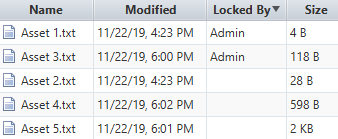
or twice to sort the entries in a descending order
.If
Asset 1.txt and
Asset 3.txt are locked by the same user, as in the previous example, you can specify another criterion to distinguish between the two. For example, the second criterion might be the date when the file was modified. To specify that date as a second criterion, hold Shift and select the
Modified column once to sort the entries in an ascending order
 or twice to sort the entries in a descending order
 . The two dots next to the arrow in the name of the column represent the priority of that criterion.
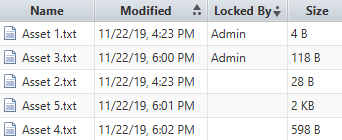
or twice to sort the entries in a descending order
. The two dots next to the arrow in the name of the column represent the priority of that criterion.Specifying the size of the file as a third criterion, as in the following image, no longer changes the order of the files.
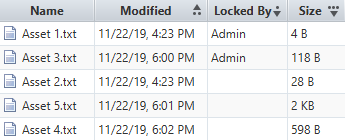
Thus, Asset 1.txt and Asset 3.txt are the only locked files (the first criterion) and Asset 1.txt was modified before Asset 3.txt (the second criterion), which is why it is the first in the list. Asset 2.txt, Asset 4.txt, and Asset 5.txt are also ordered according to the date when they were modified (the second criterion), which leaves no other files to be ordered according to their size (the third criterion).
Thus, Asset 1.txt and Asset 3.txt are the only locked files (the first criterion) and Asset 1.txt was modified before Asset 3.txt (the second criterion), which is why it is the first in the list. Asset 2.txt, Asset 4.txt, and Asset 5.txt are also ordered according to the date when they were modified (the second criterion), which leaves no other files to be ordered according to their size (the third criterion).
Sorting criteria are applied by default to all the folders that you browse through during your session. To clear all your sorting criteria, select the name of any column three times.